Use Tasks to keep deal work in one place: record the next action, set a due date, and track progress. In an organisation workspace, you can also assign tasks to teammates.
Open your task list
Sign in, select the workspace that contains your deal, and choose Tasks in the sidebar.
- Personal workspace:
/personal/tasks - Organisation workspace:
/org/<your-org-slug>/tasks
The list shows tasks across the deals you can access in that workspace. Tasks belong to a deal; if you do not have one yet, follow the First deal workspace quickstart.
Organisation viewers can read tasks. Creating, editing, and deleting tasks requires an organisation role with edit access. In a personal workspace, you manage your own tasks.
Create a task
- Choose New task.
- Enter a Title, such as “Review the latest management accounts”.
- Select the Deal the work belongs to. Title and deal are required.
- Optionally add a Description and select a Stage.
- Choose a Priority: Low, Medium, or High. New tasks default to Medium.
- In an organisation workspace, choose an Assignee or leave the task Unassigned. Personal workspaces do not offer teammate assignment.
- Optionally use Pick a date to set a Due date. The calendar lets you choose today or a future date.
- Choose Create task.
Expected result: The task is saved with To Do status. Without a due date, it appears under No due date. Active filters can hide a newly created task; remove them if you cannot see it.
Use Stage to organise work under Sourcing, Reviewing, Due Diligence, Offer, Won, or Lost. You can leave it as None.
Update progress and task details
Choose the status icon on a task row to change its status directly, or open the row to edit the task details.
| Status | When to use it |
|---|---|
| To Do | Work is planned and has not started. |
| In Progress | Someone is working on it. |
| Done | The work is complete. |
| Blocked | The work needs something before it can continue. |
In the details panel, you can update the title, description, status, priority, stage, assignee (organisation workspace), due date, and dependencies. Choose Save to apply your changes; Cancel closes the panel without saving those edits.
Expected result: A task marked Done moves into Completed. Changing it back to another status returns it to the appropriate due-date group.
Choose the deal name in the task list to open its deal workspace.
Add dependencies
Use Depends on when another task on the same deal should be completed first.
- In the new-task dialog or an existing task's details panel, choose Add dependency.
- Select one or more prerequisite tasks from the same deal.
- Choose Create task or Save, depending on where you are editing.
For example, “Prepare an offer” could depend on “Review management accounts”. The task list shows a linked-task indicator with the number of unfinished prerequisites. In a task's details, Blocking lists tasks that depend on it.
Dependencies help you plan the order of work. Update task statuses as work progresses; adding or completing a dependency does not automatically change a task's status.
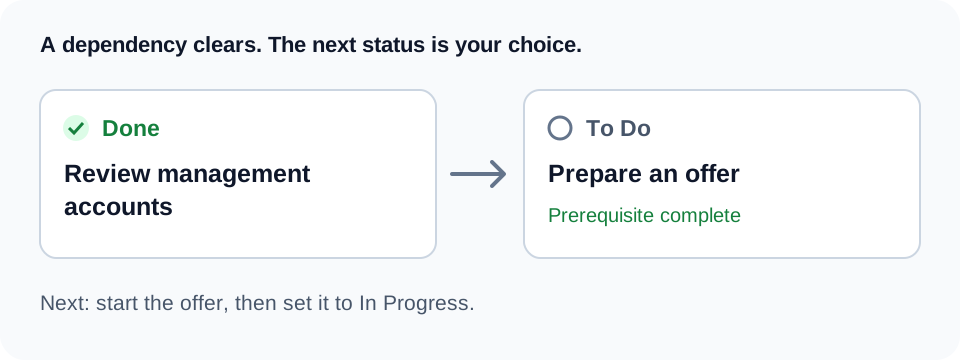
The example above shows the moment a prerequisite clears. Prepare an offer stays To Do until you start it and update its status. Use the interactive example at the top of this guide to step through the full sequence or play it on a loop.
A task cannot depend on itself, and dependencies cannot form a loop. If saving reports a cycle, remove the link that would make two tasks depend on each other, directly or through other tasks.
Find the work that needs attention
Tasks are grouped by date and completion:
| Group | What appears here |
|---|---|
| Overdue | Unfinished tasks with a due date before today. |
| Today | Unfinished tasks due today. |
| This week | Unfinished tasks due after today and by the end of the current week (Monday to Sunday). |
| Upcoming | Unfinished tasks due after this week. |
| No due date | Unfinished tasks without a due date. |
| Completed | Tasks marked Done, regardless of their due date. |
Use Sorted by to order tasks within each group by Due date, Created date, Priority, or Title.
Choose Filter, select a field, choose is or is not, and select a value. Filters cover Status, Priority, Deal, and Stage; organisation workspaces also offer Assignee. When you add multiple filters, a task must match all of them. Remove a filter with the × on its badge.
In an organisation workspace, My tasks filters the list to tasks assigned to you. Choose it again to clear that filter. Unassigned tasks do not appear under My tasks.
If something goes wrong
- No tasks appear: Check that you are in the right workspace, then clear filters, including My tasks if enabled.
- A deal is missing when creating a task: Confirm it belongs to the current workspace and that you can access it. Archived deals are excluded from the new-task deal picker.
- New task or editing controls are unavailable: An organisation viewer has read access. Ask your workspace owner or admin about your role if you need to edit.
- Creation or updates show a billing message: Follow the billing prompt for the current workspace, then retry the action.
- A message says the task was created but the dialog could not finish updating: Close and reopen the dialog, then check the task list before creating the same task again.
Related guides
- First deal workspace quickstart — create a deal and optionally add initial tasks.
- Guided setup steps — skip or resume the optional tasks step during setup.